My guest is requesting an invoice, what do I need to do?
If a guest requests an invoice or receipt, you as the host are responsible for providing it. Holidu facilitates payment between the guest and you, the host, but we cannot issue invoices to guests because we are not the legal provider of the accommodation. We only provide commission invoices to you (the host or property manager).
Why do I need to issue an invoice?
Holidu facilitates payment between the guest and you, the host. We deduct our commission before your payout, but legally you remain the service provider and therefore responsible for issuing invoices or receipts to your guests.
Important points:
- Invoices must reflect the full amount paid by the guest
- Only issue invoices from the day the guest checks in. You can prepare the draft at any time before that
- Local tax rules may differ — please check with your tax advisor if unsure
Am I legally required to issue invoices?
Yes. Hosts are legally required to provide guests with an invoice or receipt for their stay. Holidu only facilitates payment and is not the legal provider of the accommodation, which means you as the host or property manager remain fully responsible for invoicing.
For professional hosts operating with a valid VAT number, issuing an invoice at the end of each stay is mandatory, regardless of whether the guest specifically requests it. This supports compliance with local tax and accounting regulations.
Note for properties located in the Canary Islands
The Canary Islands do not apply mainland Spanish VAT (IVA). Instead, the local indirect tax IGIC applies. Invoices issued for properties located in the Canary Islands should not include IVA but must follow IGIC rules.
What is the Guest Invoice Tool?
To make things easier, Holidu provides the Guest Invoice Tool, available in your host account. The tool helps hosts create legally compliant invoices directly through their Holidu account.
Key Features
- Self-service invoice creation: Generate, edit, and issue invoices for each confirmed booking
- Legally compliant: Supports compliance with local and EU tax rules
- Flexible workflow: Start with a draft, review details, and issue when ready
- Extra services: Create additional invoices for add-ons like meals, transfers, or e-bikes
Please note that once an invoice is issued, it cannot be edited or amended. If you're unsure, choose "Save and Close" to keep it as a draft. Once you select "Save and Issue", it becomes final and unchangeable. To correct an error, you must cancel the invoice and issue a new one.
Where to find the Guest Invoice Tool
There are two ways to access it:
Option 1
- Log in to your Holidu account. If you manage multiple properties, select the one associated with the booking
- Go to the "Financial" tab on the left-hand side
- Then select Guest Invoices
Option 2
- Log in to your Holidu account. If you manage multiple properties, select the one associated with the booking
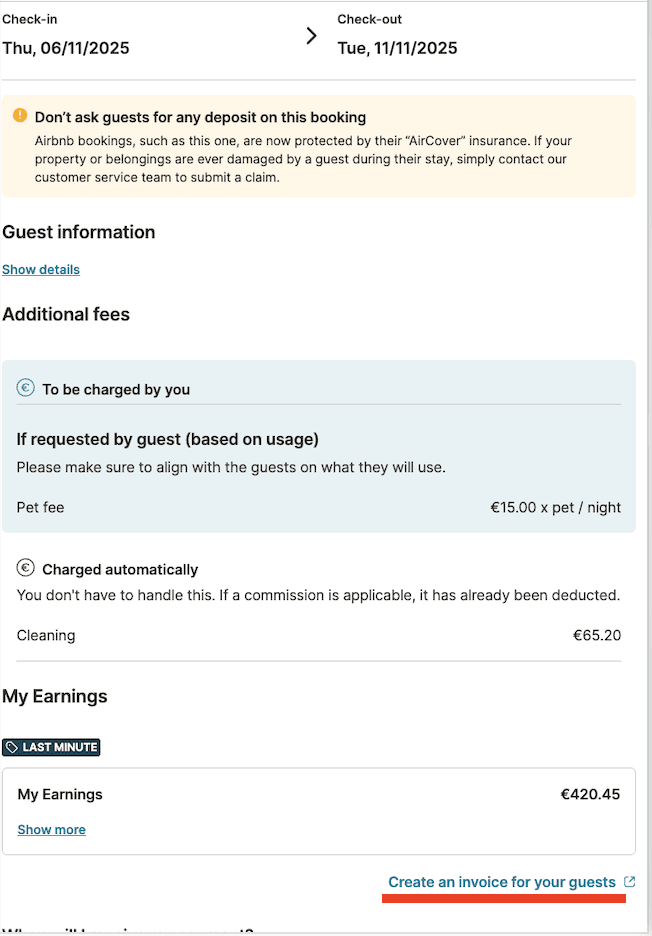
- Go to the Booking tab on the left-hand side. Then select the booking you want to create an invoice for
- Under My Earnings, click Create an invoice for your guests
How to Configure Your Guest Invoice Settings
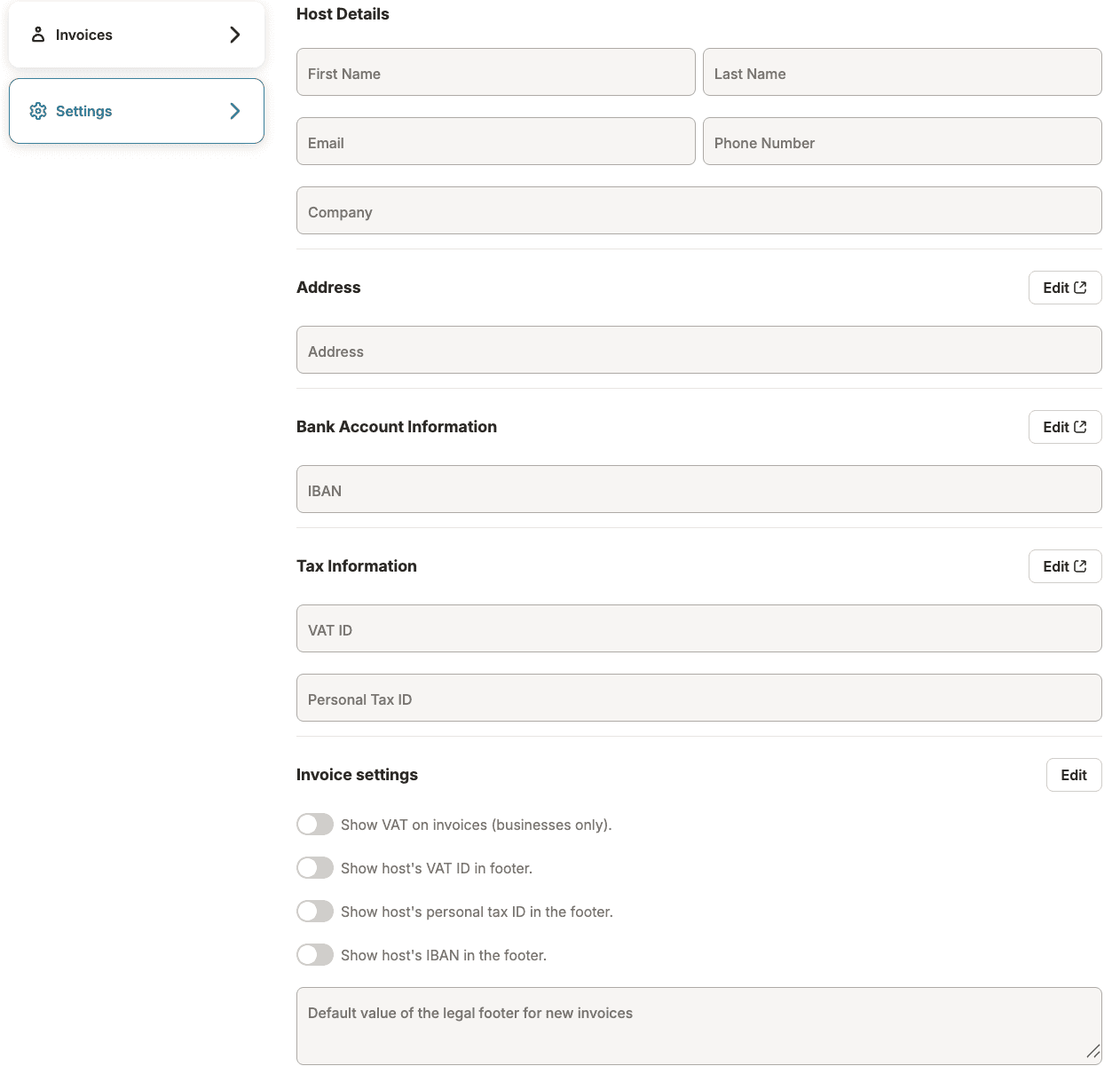
To make sure your invoices are professional and comply with local tax requirements, you can customize your details and display preferences in the Settings section of your dashboard.
Update Your Host & Business Profile
Make sure your contact and legal information is accurate, as this is used to identify you on the invoice.
- Host Details: Check that your Name, Email, and Company Name are correct
- Address: This is your legal business or primary residence address. Click Edit to update your street name, postal code, and city
Customize Invoice Display Settings
You can control exactly what information your guests see on their invoices by toggling the following options in Invoice settings:
- Show VAT: Toggle this on if you are a registered business and need to display VAT on invoices
- Footer Details: You can choose to show or hide your VAT ID, Personal Tax ID, or IBAN in the footer of the document
- Legal Footer Text: Use the text box to add a custom "Default value" for your legal footer (e.g., a thank-you note or a specific legal disclaimer required by your region)
Choose Which Business Issues the Invoice
If you manage properties under more than one business — for example, as the owner, or if a company manages the property on your behalf — you can now control which one is used on each invoice.
This applies to you if:
- You own the property directly, and also invoice through a separate business you run, or
- A management company handles the property on your behalf, and either you or that company needs to issue the invoice
Which business is used depends on the booking — we automatically select the one that applies to that specific booking. If it's not correct, or you'd like to invoice as a different business, you can change it before issuing.
Where to manage it: Settings > Invoices. You'll see your default profile plus any you've created yourself. You can add, rename, edit, or delete a profile anytime.
Made changes by hand? If you edit the invoice details and they don't match a saved profile, we'll ask if you want to save them as a new one — so you won't have to type them again next time.
Invoice numbers: Each profile keeps its own count and warns you before a duplicate, so your numbers stay clean no matter which business you're invoicing as.
Step by step: create the invoice
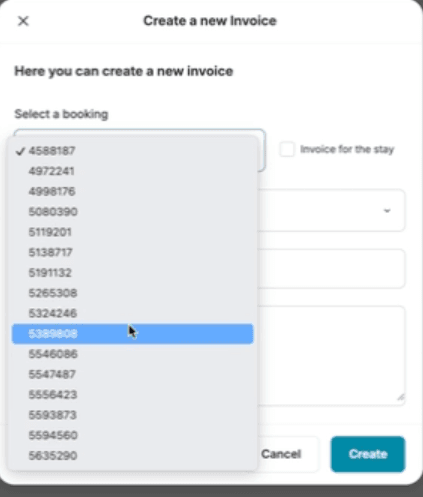
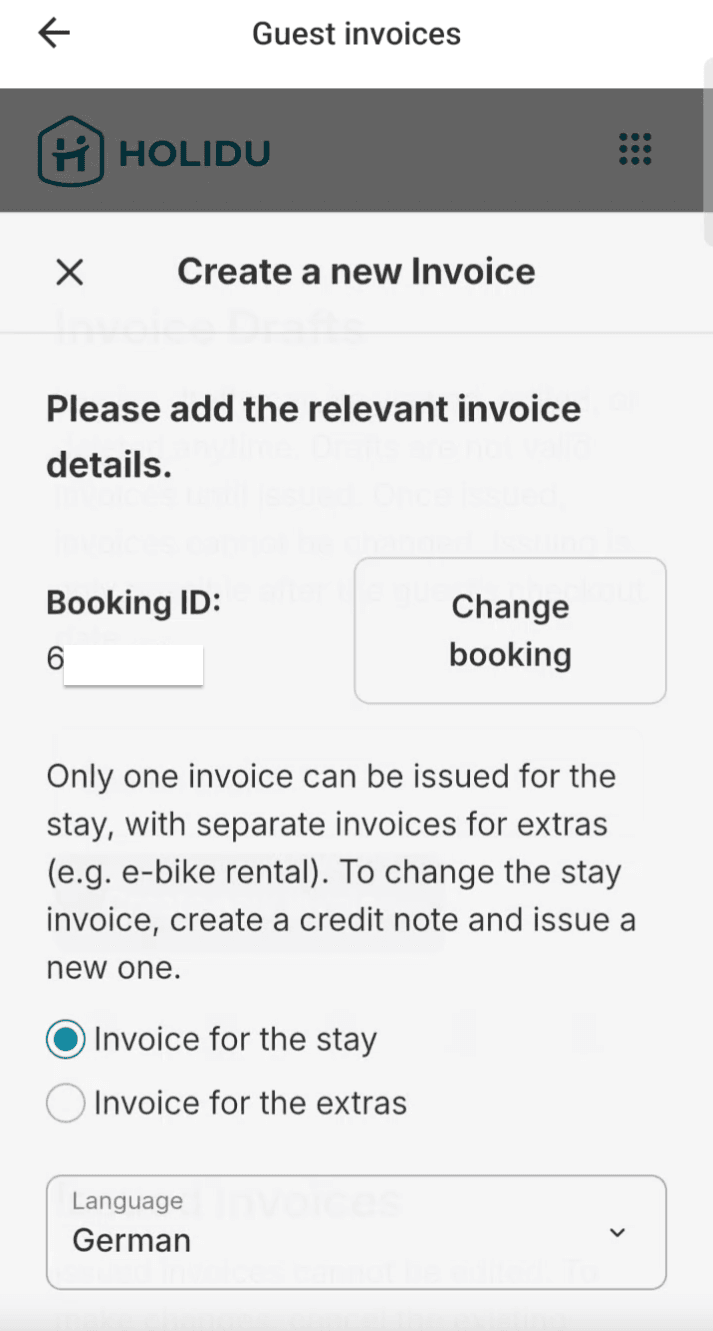
Step 1: Select Booking Details
Choose the relevant booking ID and preferred language. Choose the issuer — we pick it automatically, but you can switch it here.
Step 2: Add Guest Information
Enter the guest's billing address and VAT ID (if applicable).
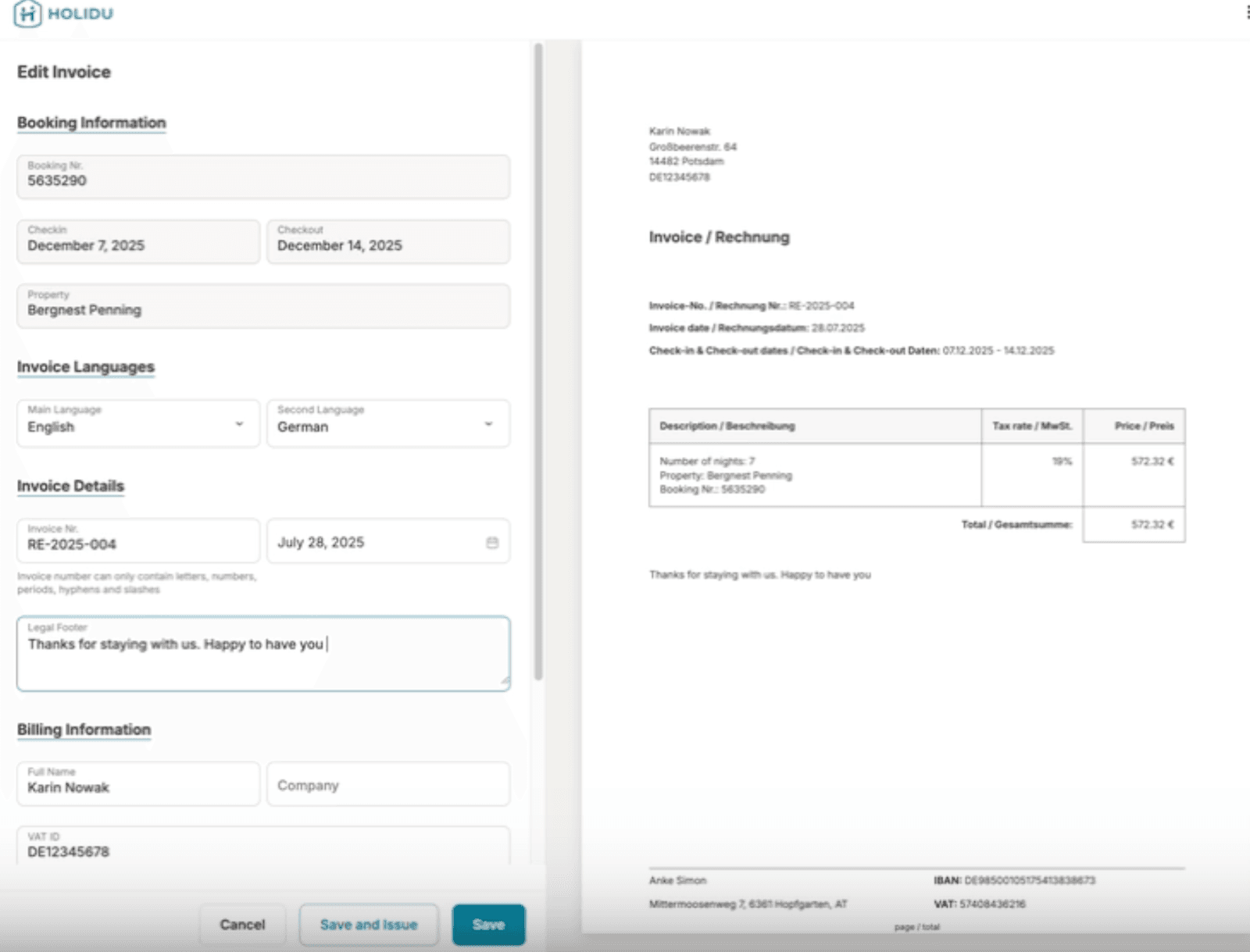
Step 3: Review and Customize
The system will display booking details such as dates, property name, and total amount automatically. You can also add a personalized message under the Legal Footer. The message added in the Legal Footer will show on the invoice.
Step 4: Finalize the Invoice
You have three options:
- Cancel: Leave the form without saving your latest changes. The draft stays in your list
- Save and Close: Keep as a draft for later edits
- Save and Issue: Finalize the invoice. Once issued, it cannot be changed
Step 5: Delivery
Once issued, the invoice is emailed to your guest automatically, with the PDF attached. You can also download the PDF from the tool at any time, for example if the guest asks for it again.
How to Automate Your Workflow
Under Automatic invoice number settings, you can choose to:
- Enable Automatic Generation: Toggle this on to have the system automatically assign a unique number to every new invoice, saving you manual record-keeping time
Invoicing for Extras
To invoice for additional services beyond the guest's stay, first create the Invoice for Stay, and then generate a separate Additional Invoice for extras.
Personal Tax ID for German Hosts
For hosts in Germany, the Personal Tax ID (SteuerID/IdNr.) should not be displayed (this information will not be automatically transferred to all invoices, but the field will be empty). The correct number to use instead is the Tax Number (Steuernummer).
Here's how to configure the Tax Number (Steuernummer) so all invoices include it:
- Go to Settings under Invoices in the Guest Invoices Tool
- Locate the Tax Number (Steuernummer) field
- Click Edit
- Manually enter the valid Tax Number (Steuernummer)
- Save the settings
Once saved, this number will appear by default on the Invoice Form.
Important reminders
- Always issue invoices for the full amount paid by the guest
- Only issue from the day of check-in. Drafts can be prepared earlier, and if a draft is still waiting once the guest has checked out, we send you a reminder by email
- Holidu's commission is deducted before payout, but must still appear in the total amount
- If a booking is canceled, guests may request a cancellation invoice
- Holidu provides the tool, but you remain the official issuer of all invoices
Using the Guest Invoice Tool as a private host
You don't need to be a registered business to use the Guest Invoice Tool. If you rent out your property as a private host, the tool is available to you too — and it can make creating invoices or receipts for your guests much simpler.
What to keep in mind as a private host
- The tool is optional. There is no obligation to use the Guest Invoice Tool. It's simply there to support you whenever you need or want to provide an invoice to your guests
- Your Tax ID: In Spain, for example, private hosts can use their DNI or NIE as their Tax ID when setting up the tool
- Know your local rules. Invoicing requirements vary by country and region. As the host, you are responsible for finding out which regulations apply to you and staying compliant with them. If you're unsure, we recommend getting advice from a tax professional in your country
A note for hosts in Portugal
If your property is in Portugal, please be aware that specific invoicing rules apply in your region. The Guest Invoice Tool is available to support you, but complying with local invoicing requirements remains your responsibility. We recommend confirming the rules that apply to you with a local tax advisor. Please note that invoices must be issued using software that is authorized by the government. Our tool is a general solution that allows hosts to create invoices for guests; however, Holidu is not responsible for the legal validity or compliance of the invoices generated through this tool. Hosts can choose whether or not to use this tool and remain fully responsible for ensuring that their invoices comply with Portuguese legal and tax requirements. Invoices are available after the guest checks out.
Frequently Asked Questions
Q: Am I legally required to issue invoices?
A: Yes. In most countries, you are. Holidu only collects payment — invoicing is your responsibility.
Q: Can I include extras like food or e-bikes?
A: Yes. Use the "Additional Invoice" option.
Q: What if I make a mistake?
A: You can cancel the invoice and issue a new one. Once issued, it cannot be edited.
Q: Can I use the Guest Invoice Tool as a private host?
A: Yes. You don't need to be a registered business to use the tool. However, you remain responsible for ensuring your invoices comply with local regulations.
Q: When are invoices available?
A: Invoices are available after the guest checks out.
Do you want to contact us?
We’re here to help. You can contact us directly if you need assistance or have questions.
Contact us