Online Check-in - How to Connect to SES.HOSPEDAJES
Learn how to register your property on SES.HOSPEDAJES and connect it to your Holidu account for automatic guest check-in submissions. This guide walks you through credential setup and online check-in configuration in just a few steps.
What is SES.HOSPEDAJES?
SES.HOSPEDAJES is the official platform developed by the Spanish Ministry of the Interior to comply with Royal Decree 933/2020. It acts as a centralized system for reporting guest information to the Ministry, as required by law. Once you connect your property to this platform through Holidu, guest registration forms are automatically submitted after check-in completion.
Important note: Imported bookings (those not created directly through Holidu) are not linked to SES.HOSPEDAJES. You must manually submit this data through your SES.HOSPEDAJES account.
Step-by-Step: How to Register and Get Your Credentials
Step 1: Create Your SES.HOSPEDAJES Account
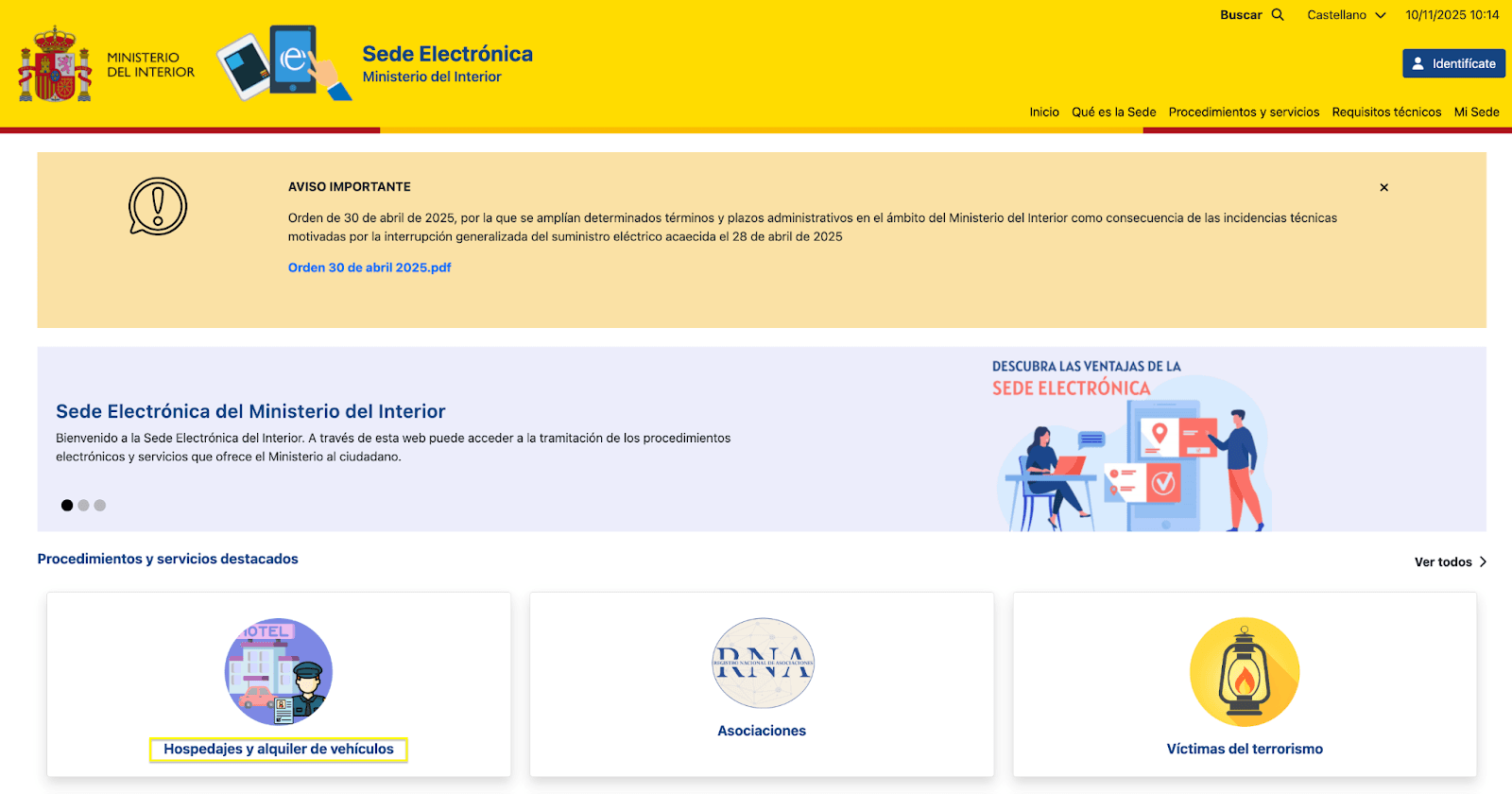
Visit the Ministerio Del Interior website and click on "Hospedajes y alquiler de vehículos."
Select one of three registration options:
- Acceso al registro de establecimientos y entidades: Choose if you have no account and no Cl@ve registration
- Acceso a la consulta y envío de comunicaciones: Use if you already have a Cl@ve registration
- Existing login access: If you already have credentials, log in directly
Step 2: Select Your Verification Method
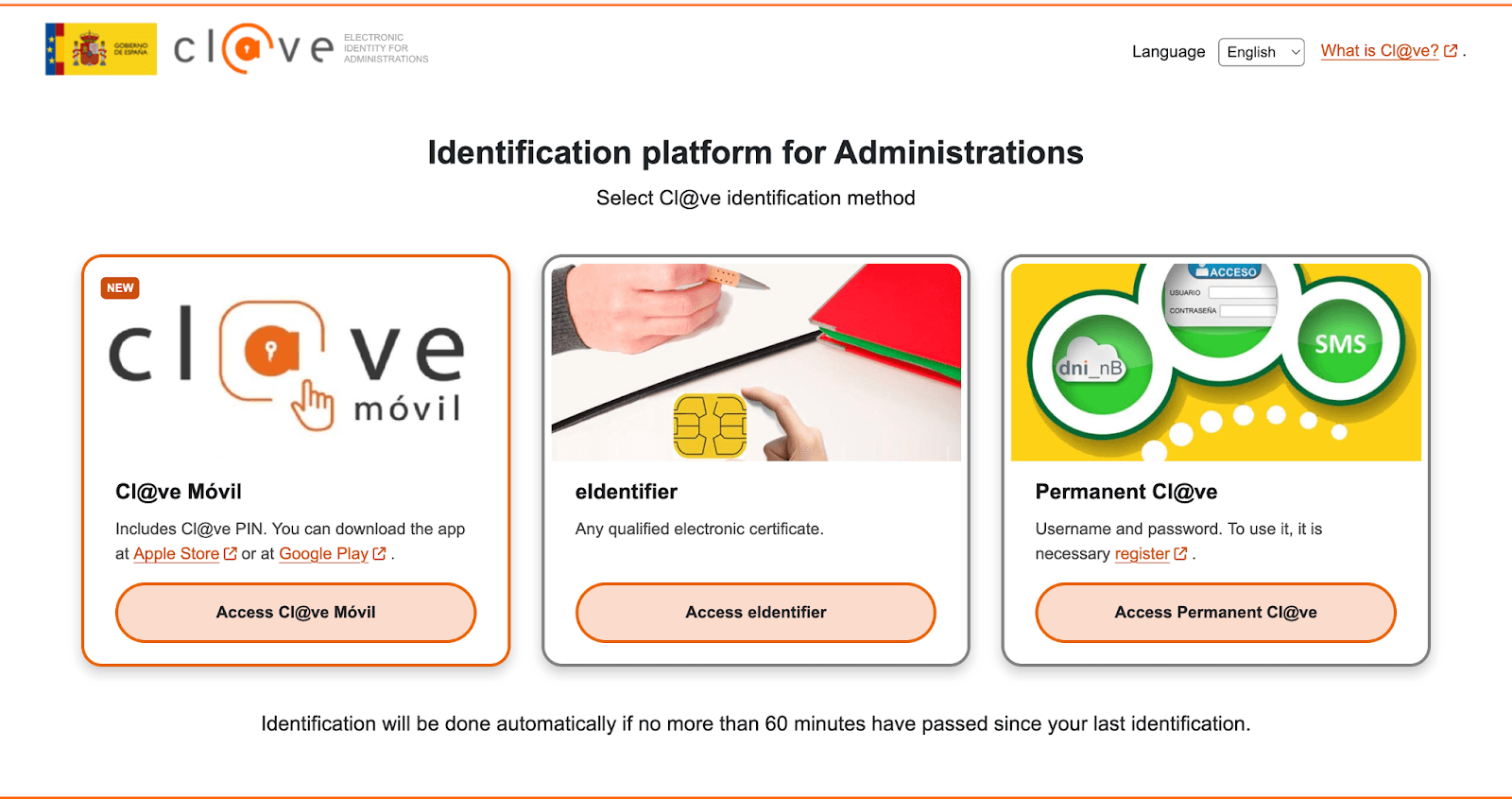
Choose between a Digital Certificate or Cl@ve PIN/DNIe. If needed, request a digital certificate via FNMT or register with Cl@ve. Then click the "@" icon on the SES.Hospedajes portal to proceed.
Step 3: Access Your Account and Choose Registration Type
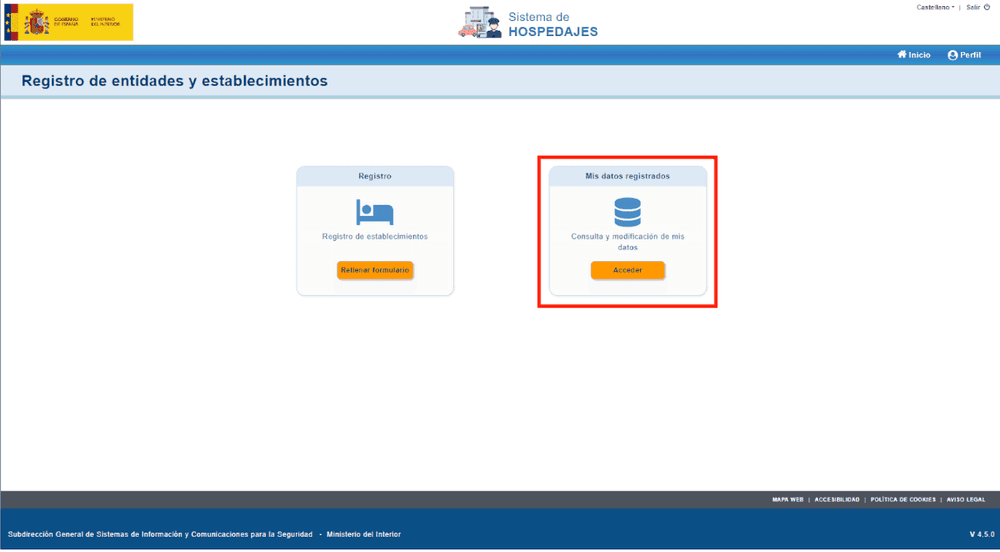
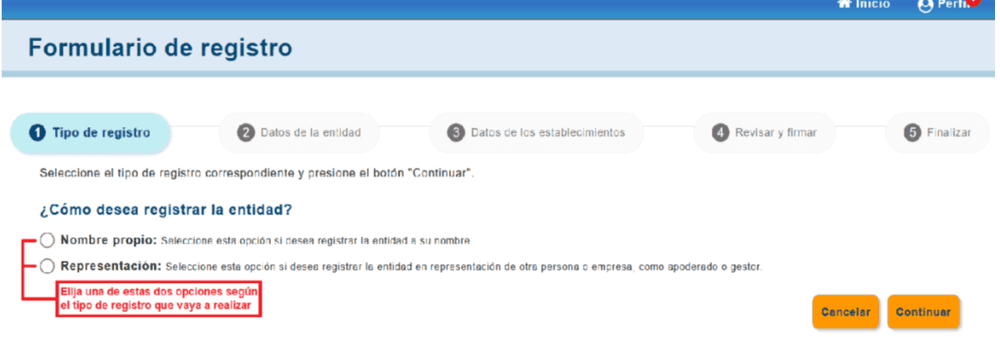
Once logged in, navigate to "Registro de entidades y establecimientos." Select your registration type (for example, "Hospedaje turístico") before continuing.
Step 4: Complete Your Registered Data
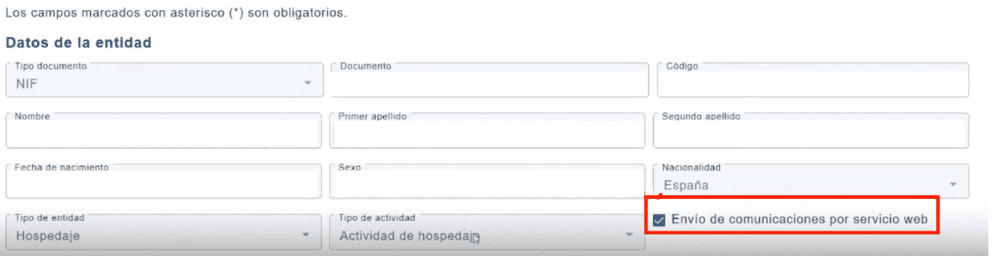
Open "Mis datos registrados" and fill in all required fields. This is crucial: tick the box labeled "Envío de comunicaciones por servicio web" before signing. Without this checkbox selected, your web service credentials will not generate correctly.
Step 5: Register Your Properties
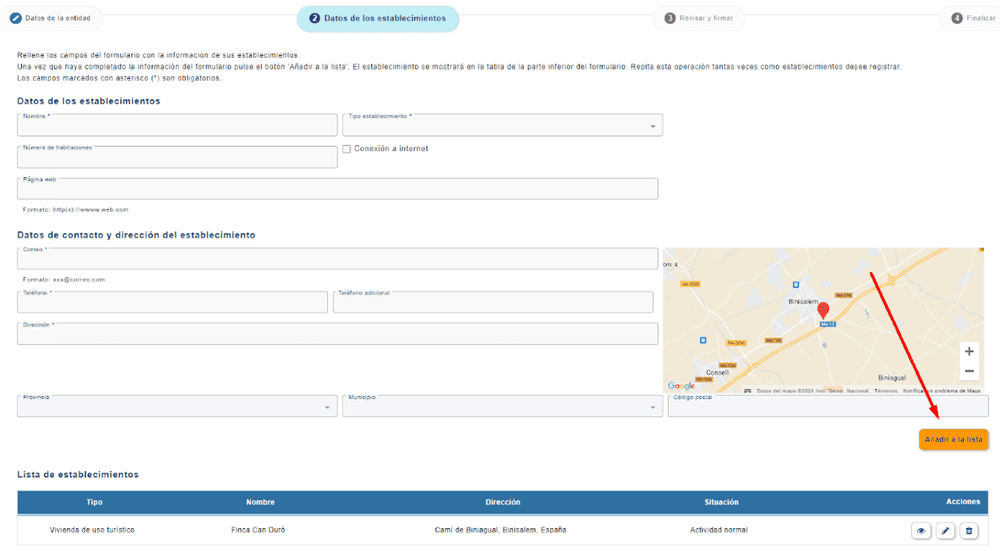
Once your personal data is complete, register each property with its corresponding information, including name, address, and license number.
Step 6: Review and Sign
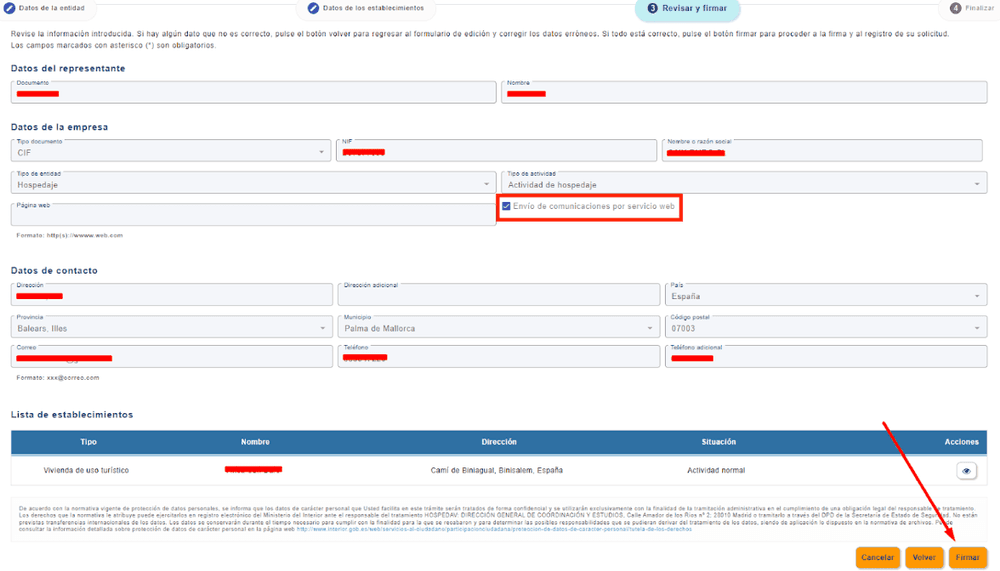
Review all your information carefully and sign using Autofirm@ or Cl@ve Firma. Ensure the web service option remains active before signing.
Step 7: Receive Your Credentials
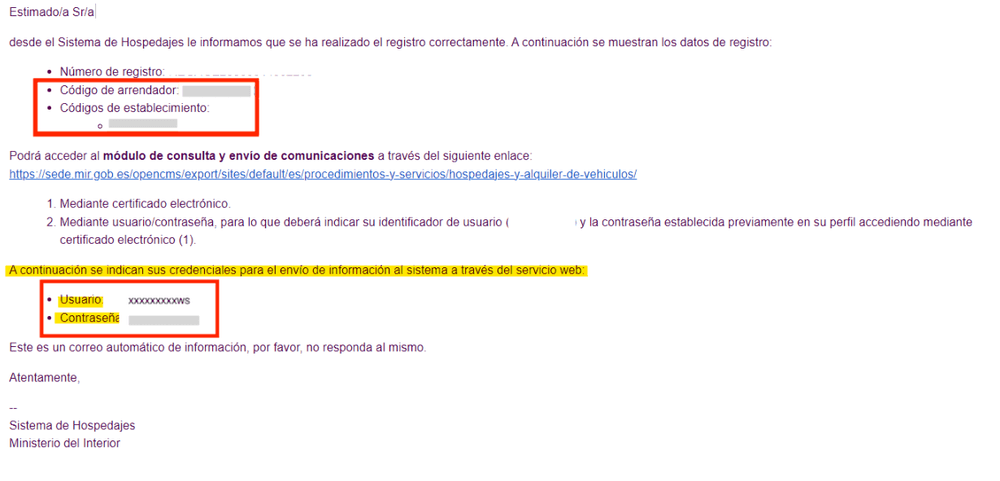
After signing, you will receive an email from no-reply@hospedajes.mir.es containing your login credentials. This email includes your owner code, property code, and web service credentials (marked with "WS"). You will need these credentials to activate automatic guest check-in transfers from Holidu.
How to Configure Online Check-in in Holidu
The Online Check-in feature connects your property directly with SES.HOSPEDAJES, allowing Holidu to automatically transfer guest data after each guest completes the online check-in form. See our FAQs for more details about the guest check-in feature.
Before starting, ensure you are using the latest version of the Holidu app.
Configuration Steps:
- Open the Holidu app
- From the left side menu, navigate to Tools → Online check-in
- Click Configure next to the property you want to connect
- Fill in the configuration form:
- Click Statistics connection
- Select SES.HOSPEDAJES from the dropdown
- Enter your credentials: Username, Password, Accommodation code, and Landlord code (from your email confirmation)
- Click Validate to test the connection
- Click Save changes
Note: If you have properties in Catalonia or the Basque Country, select Mossos d'Esquadra or Ertzaintza, respectively.
If no error message appears after validation, your connection is now active and ready to use.
Troubleshooting Credential Issues
If you encounter problems with your SES.HOSPEDAJES credentials, follow these steps:
- Access the SES.HOSPEDAJES platform by clicking here
- Select the "@" icon to access the Registry of Establishments and Entities
- Log in using your Digital Certificate or Cl@ve app
- Click on the "Access" option under Communication Service
- Copy your Username from the left column and click "Change Password" to update your credentials for sending Guest Registration forms
Important: Once Online Check-in is activated, guests receive the check-in form automatically for eligible bookings. If your SES.HOSPEDAJES credentials are incomplete or incorrect, the form will still be sent, but the automatic data transfer to authorities will fail.
Key Takeaways
- Register on SES.HOSPEDAJES through the Spanish Ministry of the Interior
- Always select "Envío de comunicaciones por servicio web" during registration to generate web service credentials
- Save your login credentials from the confirmation email
- Connect your account to Holidu via Tools → Online check-in
- Validate your credentials before saving in Holidu
- Manually submit data for imported bookings not created through Holidu
Do you want to contact us?
We’re here to help. You can contact us directly if you need assistance or have questions.
Contact us